Content:
Section status and preliminary watermark
Content and Appearance: The right-hand menu
Reports and Report Templates
With the report generator you compile several reports together to form a PDF.
As you change financial year the accounting reports will show you the numbers for the financial year you have selected and data entered via variables is automatically updated.
Information you have entered manually on the cover page for example is not updated automatically.
To look at a specific report for a certain point in time in the past you need to save the specific report to the linked documents section of the Archive.
When you land in the report generator you will see all your report templates in the landing page.
Click on a report template to open it and be able to work with it.
The Report Template name
Each template is given a default name in the format:
Report generator + DD–MM–YYYY
Using the menu next to the template name, you can:
Rename the template
Copy the template
Delete the template
The template name is also used as the default name for exported and saved PDFs, but you can rename the file at export.
Editing sections: The top bar
When a report template is open, the top bar shows tools for the currently selected section.
Top bar content
Section name – displayed on the left
Status – set the section as In progress or Done
Comments – add notes for yourself, colleagues, or clients
Report settings – edit report-specific settings
Hide section – exclude a section from the PDF without removing it
Remove section – delete a section from the template
Section status and preliminary watermark
The status helps you keep track of your work and gives a clear overview of which sections are ready.
If any section included in the PDF has a status other than Completed, the PDF will automatically receive a Preliminary watermark. This ensures that draft reports cannot be mistaken for final versions.
You can also mark all sections as completed using mass management in the right-hand menu.
Content and Appearance: The right-hand menu
The right-hand menu is divided into two tabs: Content and Appearance
The Content tab
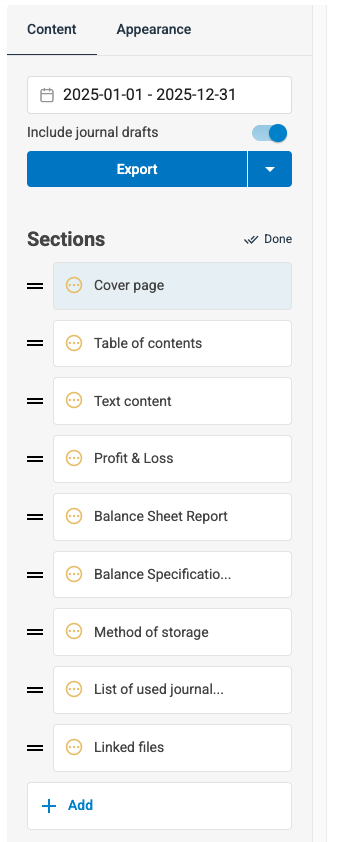
The content tab is open by default and offer you the following setting:
The report period
Generate reports for:
A full financial year
A quarter
A custom period
The selected period applies to all accounting reports in the template.
Your choice is remembered between sessions.
When you change financial year, the accounting reports automatically update to show figures for the selected year. Manually entered information (for example on the cover page) is only updated automatically if variables are used.
Include journal drafts
You can simulate what your accounting would look like if you posted certain journals that are still drafts (ie: saved and not posted). This is to avoid corrections and crossed out rows as you are finalising your financial statements.
- Journal drafts can be included in the Balance Sheet report and the P&L.
- In the reports there is a red text reminding you that drafts are included,
- The Preliminary watermark is also triggered automatically when drafts are included.
-
The watermark is not visible in the Preview, only in the PDF.
Export the report
You can export reports in several ways:
- Export will download the PDF to your computer
- If you want to save a copy to your Archive click on Save to Linked Documents.
A copy of the report will be saved in the Report generator folder, and organised in chronological order. If drafts are included, the report will be marked as preliminary.
-
Publish to Dashboard: Make the report available to your client. Read more about the functionality here.
-
Saving versions and looking back in time
If you need to view a report exactly as it looked at a specific point in time, you must save it.
Use Save to Linked Documents when exporting
Saved reports are stored in the Report Generator folder in the Archive
You can save multiple versions, such as drafts and final reports
This allows you to keep a clear version history and return to earlier reports when needed.
Note: when you save or publish your report it will also always be downloaded automatically.
Sections
Sections are the individual reports included in the final PDF.
Click a section to preview and edit it
Drag and drop sections to reorder them
Hide sections without deleting them
To add a section, click Add section and choose from the available reports.
Sections from Accounting:
- The Balance sheet report,
- The Profit an Loss Report
Both including the option to include drafts to simulate the report.
Read more about account classes and linking account classes to Official Groups to be able to create these official reports.
- The Balance Specification report
Summarise sub-ledgers
Group unreconciled transactions
Clean up and shorten the report
Read more here.
Additional Sections
- A template for the Auditor's Report
- Cover page, customisable with logo, text, colors, and variables
-
The Notes to the financial statements. (FI only)
Read more about the Notes report here.
Coming soon: An automatic block for the calculation of changes in equity and a new note for unrestricted equity - Automatic table of content
- Linked files (JPG, PNG & PDF)
- List of used Journals and accounting reports: Read more
- Method of storage: Read more
- A signatures page template
- A text content page with place for a header and free text
The Appearance tab
The Appearance tab controls the overall look of the entire PDF.
Theme
Choose from predefined themes that affect:
Cover page layout and colors
Fonts and heading styles
Themes can be used as a starting point and further customise
Global appearance settings
Apply settings to the entire report:
Font types and sizes
Line height
Orientation (portrait or landscape)
Header text (free text or variables)
Optional elements
Toggle the following options:
Company logo in report headers
Preliminary watermark (manual or automatic)
Page numbering throughout the PDF