The structure of the process transaction view
Once your banking file has been uploaded or bank transactions automatically fetched online, you are transferred to the Process Transactions view. The steps below are identical no matter how your transactions have been imported, online or via file upload.
This view is divided into several sections:
-
The view is divided into 2 collapsible sections:
- Unprocessed transactions at the top. These are the transactions Briox has not been able to match automatically.
-
Matched transactions at the bottom. Here you will find the transactions that have been automatically matched to their payments.
- On the left hand side you find the bank transaction uploaded automatically (online) or contained in the file you uploaded from the Bank. These are payments to and from your account or card expenses.
To display and work with incoming reference payments under process transactions (CAMT 54), check the box: Include reference payments.
- On the right hand side, are the transactions you have registered in Briox. Here you can choose in the drop down menu if you want to display:
Note:
The numbers that appear on the supplier invoice are the Serial number (always), the reference number and the invoice number. They appear in that order if all are filled in.
Note:
The invoices that appear here are both posted and unpaid or only partially paid. If the approval functionality has been turned on, supplier invoices must be approved for payment to appear here.
On both sides you have the possibility to additionally filter the transactions to make matching easier.

Matching Transactions
When you have found two matching transactions, e.g. a bank transaction that is a payment for a supplier invoice, drag one and drop it onto the other. You can do this in either direction.
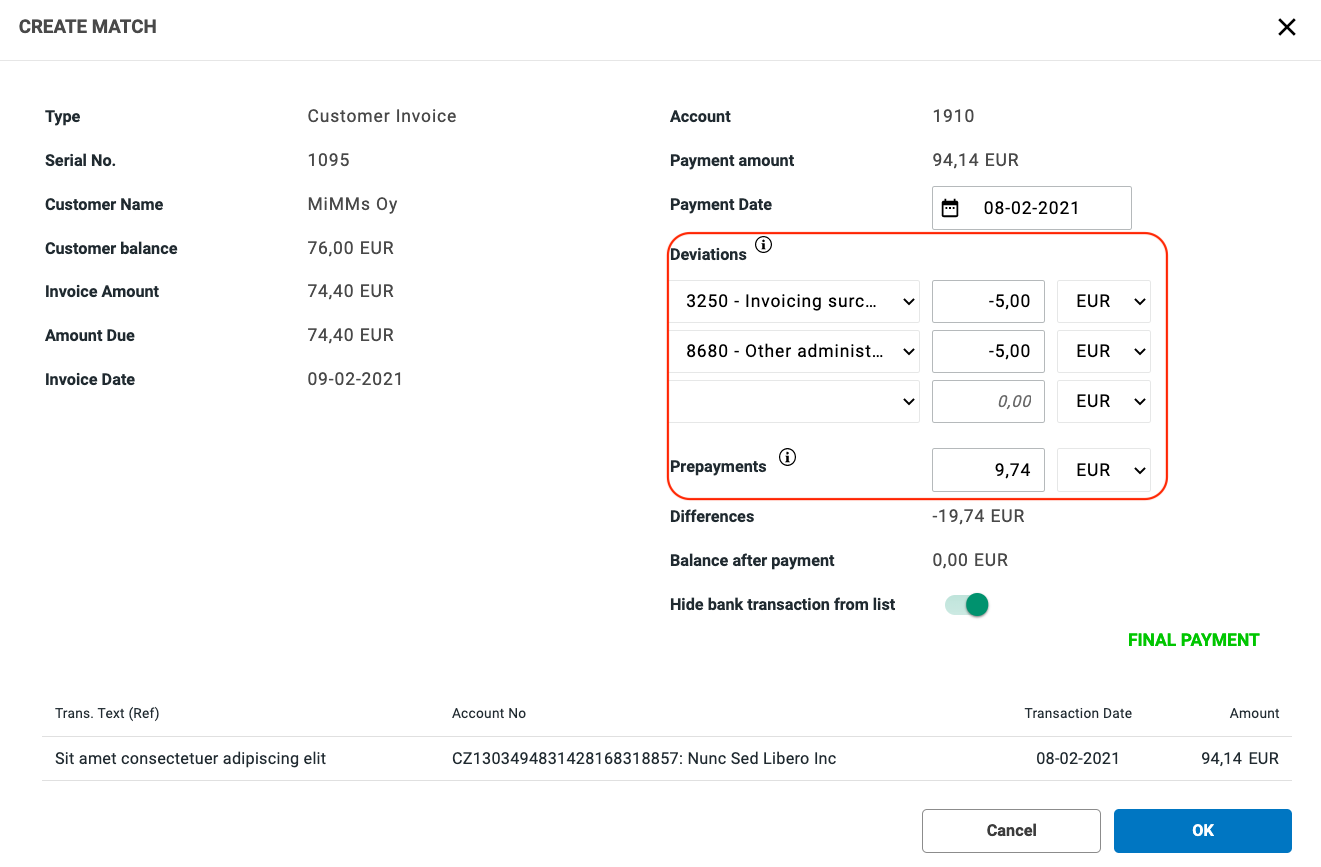
A modal pops up and here you can:
- Choose on or many difference accounts from the drop down menu if you need to account for a discrepancy between the payment and the invoice. The amount infront of difference will then be posted to that account when the payment journal is created. See below.
-
Overpayments from you customer can also be handled here.
- If you are creating a part payment leave the difference account empty so that the difference remains on the invoice. After being processed, the invoice will display both sums in the list: what is left to be paid/the total. See below.
- The Payment Date can be changed if it should be different than what is registered on the uploaded transaction.
- The Payment Method is automatically the one linked to the bank account you are reconciling. (A bank account is set up as a payment method under: Settings - Accounting - Banking & Payments).
Click on OK and the match will land in the Matched Transactions list in the section at the bottom of your screen. Here the transactions are awaiting processing.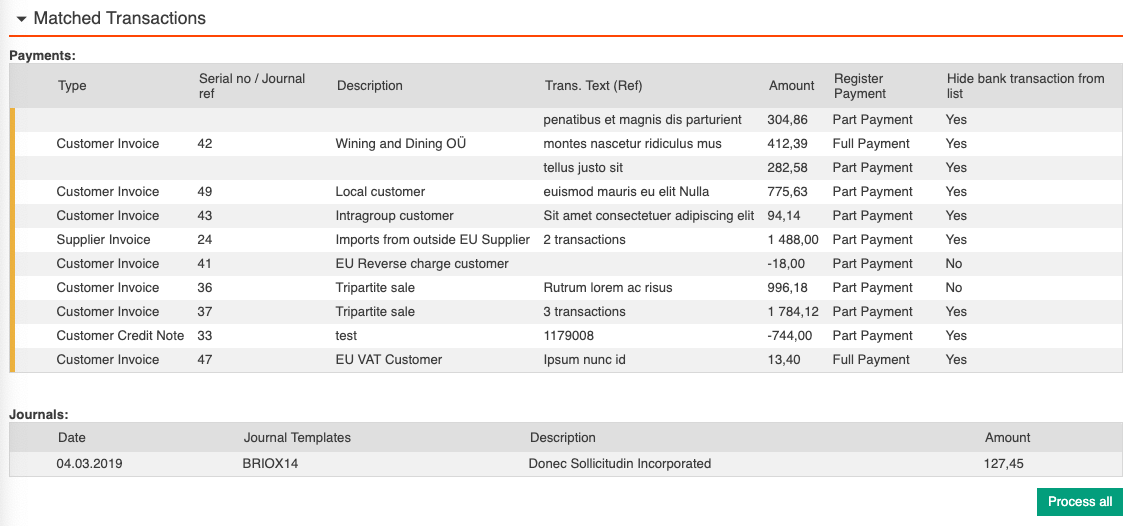
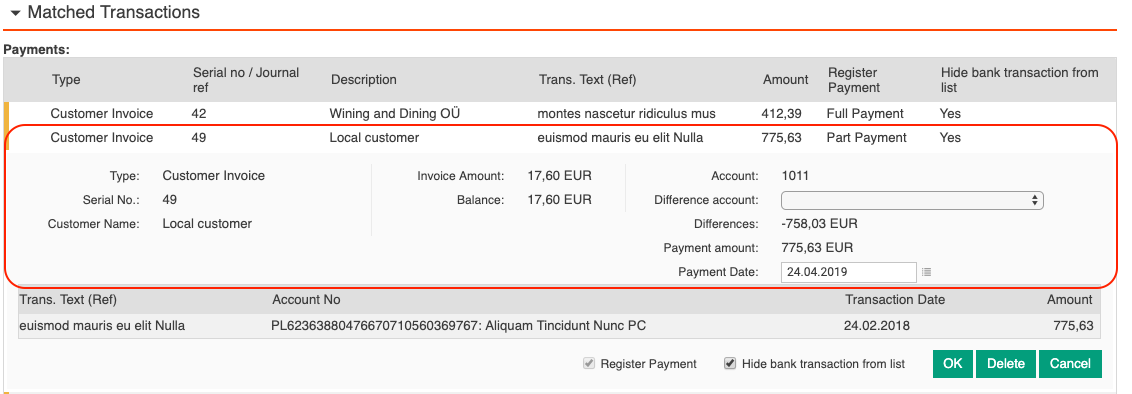
If you want to check a matched transactions, simply click on it to open it up. Here you can edit the deviation account and payment date.
Match invoices that are in foreign currency
Mass manage matching
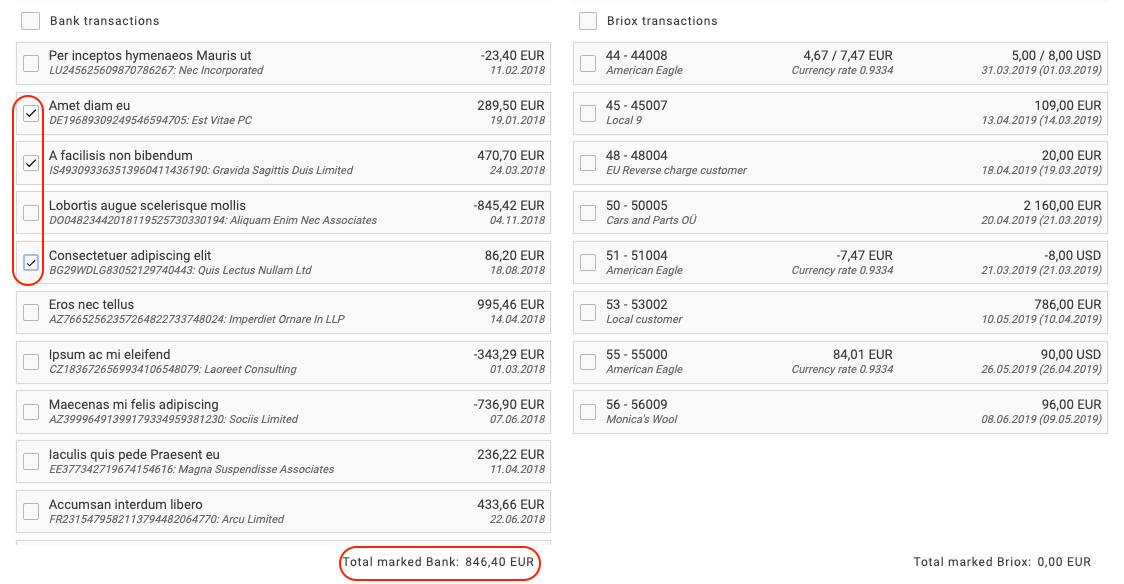
Several payments can be matched to one invoice as well as several invoices to one payment.
Use the check boxes on the left of the transaction or invoices to highlight them & drag them simultaneously to the other side.
Note: The transaction you are dropping on is highlighted in Green. The transactions you can drop on are highlighted in blue.
The Payment Modal
The same modal appears for you to confirm the match. see below for several transactions matched to one invoice.
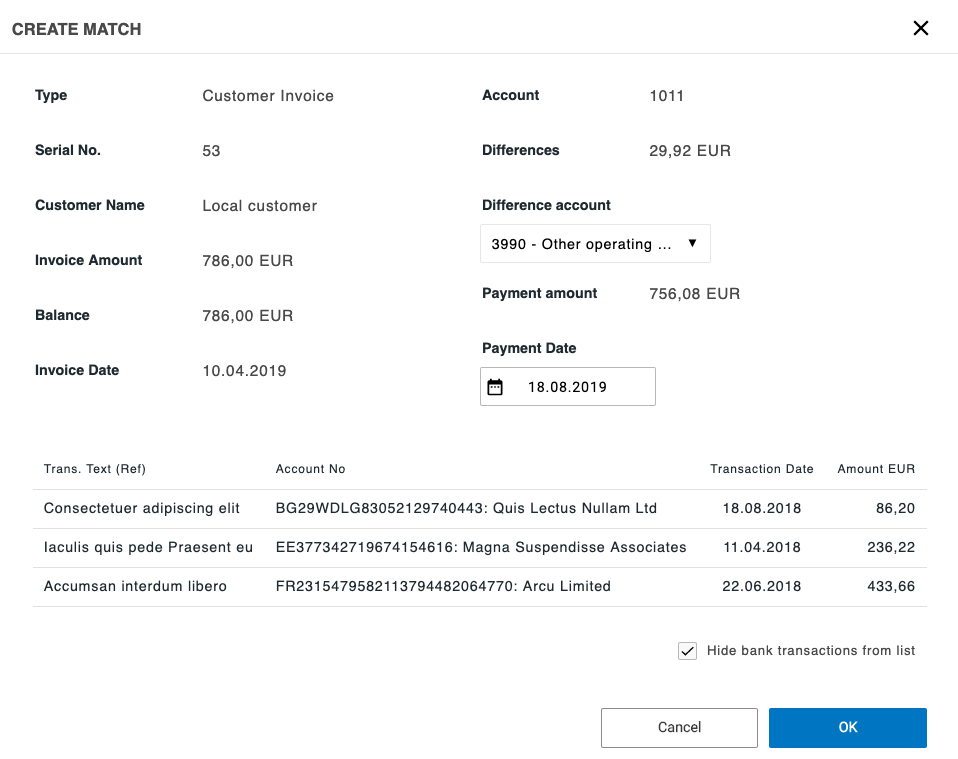
For several invoices matched to one payment, the modal will look like this:
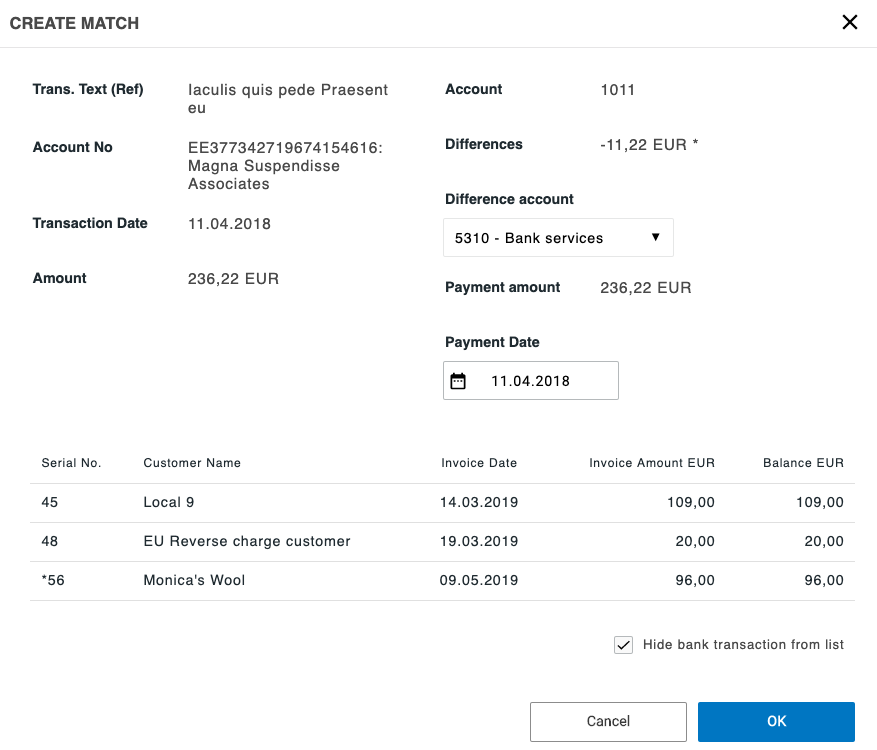
Note: In the case of additional payments, you can drag any additional payments onto a match in the matched transactions area at the bottom of your screen to add it to the list to be processed. The transaction must be open.
Processing the matched transactions list
-
Payments are automatically registered on the invoices as they are reconciled – the box Register Payment is pre-checked to highlight what is going on in the background.
- Choose whether you want to hide a transaction from the list by ticking the box Hide bank transaction from list.
- Click on:
- OK to go ahead with your reconciliation
- Delete if you want to undo your match
- Cancel to simply leave the view without making any changes
When you are happy with your matches click on Process all to reconcile the transactions you have matched and create payment journals all in a single click.
When matched, documents can also be processed one type at a time.
Select the type of document to process in the drop down and them click process.
The Process can be further automated by allowing Briox system to automatically post full matches for you.
A notification informs you that your matches have been processed.
All bank transactions will be automatically marked with the journal numbers and your journals will be found in the journal list.