You can add new price lists and set the default price list under Registry - Items - Price lists.
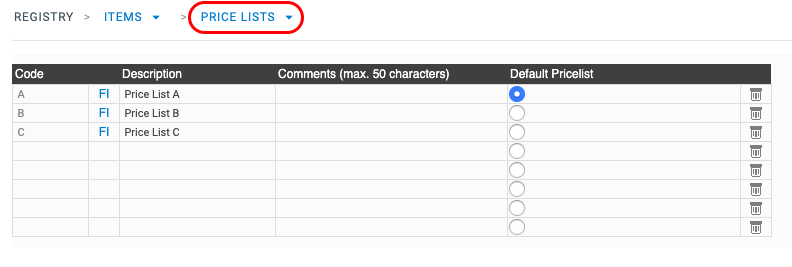
Add a price list
Add a price list, by entering a code and a description. Click on Save. You can add as many price lists as you wish.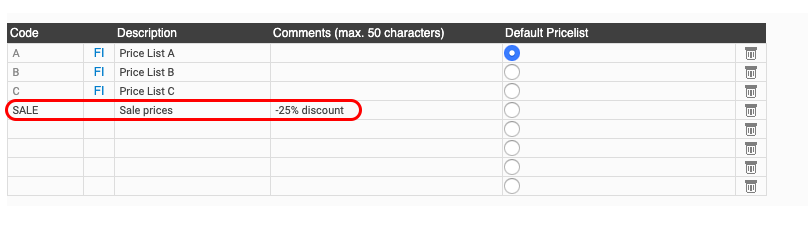 Create prices for your price list by entering the prices manually on the items in the Registry, or by using the price update functionality.
Set a default price list
Under Registry – Items – Price lists, select which price list is to be the default price list by ticking the radio button at the end of the row:
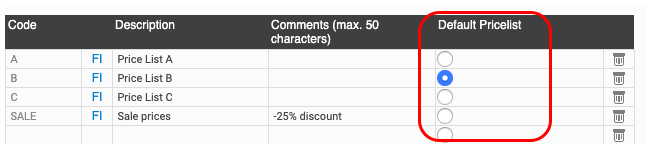
The prices from the default price list are displayed as your sales price in the item list. You can choose in the drop down menu which price lists are to be displayed.

It is also the price list which will be preselected when you add new customers.
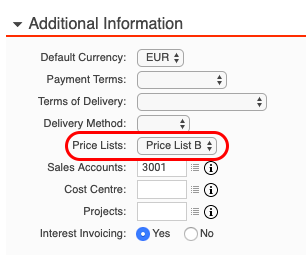
Link a price list to your customer
One of these price lists can then be assigned to a specific customer under Registry - Customers - (Select customer) - Additional information, so that the prices belonging to that price list are automatically attributed to that customer when an invoice is created.
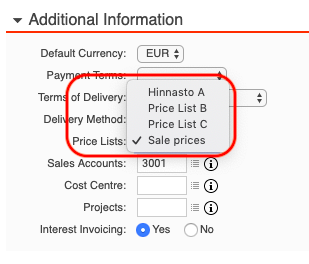
If no price list has been selected for the customer, the default price list will be applied.
Enter prices on your price lists
To be able to work with different prices towards your customers, prices must be recorded on the various price lists on each item, under Registry - Items - (Select item) - Price List.
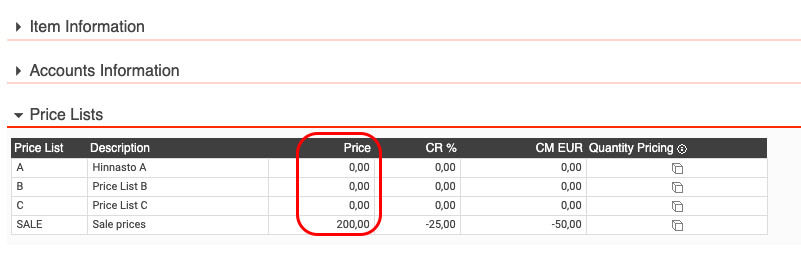
In the Price column, enter or edit the price that the item is to have in the various price lists. Click Save. Prices can also be mass managed via the price update functionality.