To activate the functionality, go to Settings - Accounting - Cost Centre Control
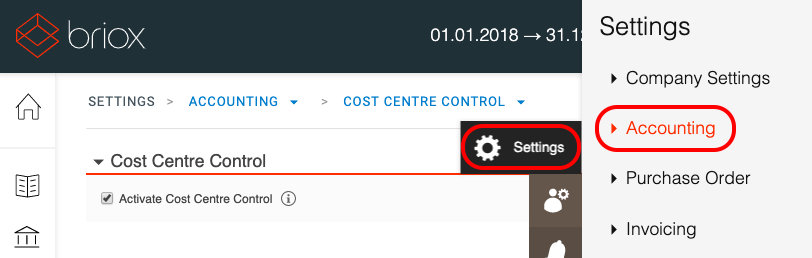
Tick the box to Activate Cost Centre Control. To inactivate the functionality simply un-tick the box.
Once the functionality has been activated, two more steps must be taken to be able to work with the Cost Centre Control feature.
- A user must be activated for cost centre control under Admin – Users – (Select user) – Edit user - Cost Centre Control.
This step enables us to check that the user does not have conflicting rights. A user whose access is to be controlled via Cost Centres cannot have access to the Accounting or the CRM module or to Reports under Invoicing. - A Cost Centre must be added to the user or a user to the cost centre however you prefer to work. This step determines which cost centres the users will be able to see.
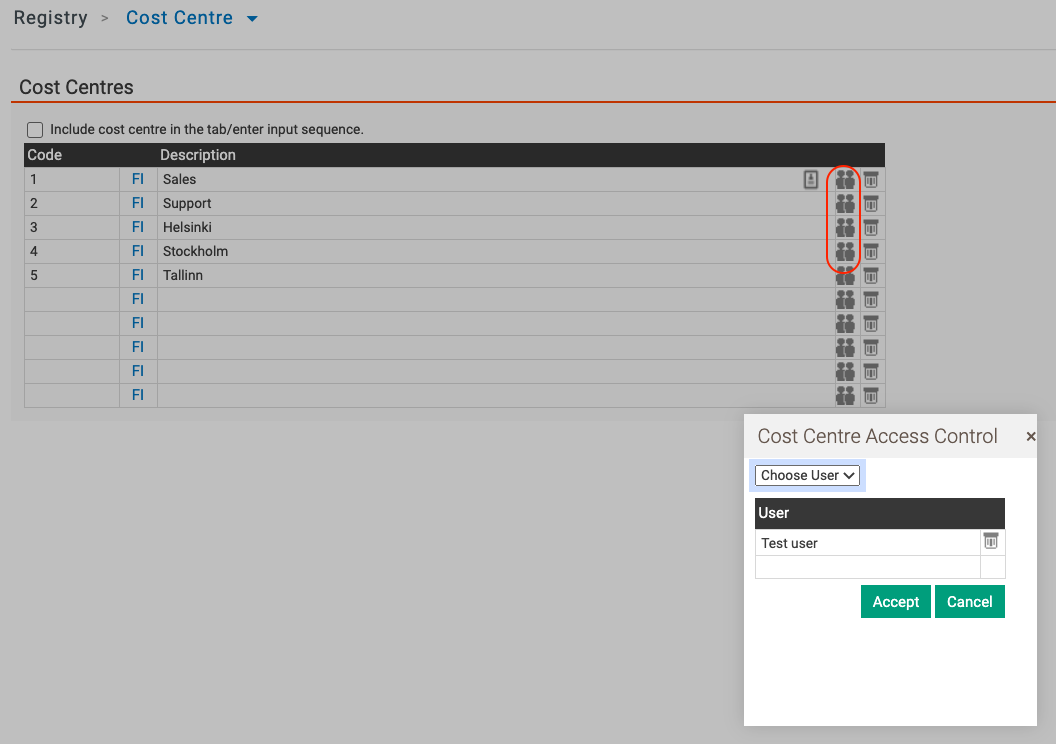
- Users can be added to cost centres under Registry – Cost Centre, click on the icon for Cost Centre Access Control. See below.
- Cost centres can be added to a specific user under Admin – Users – (Select user) – Edit User - Cost Centre Control
- Users can be added to cost centres under Registry – Cost Centre, click on the icon for Cost Centre Access Control. See below.
Read about how to add Cost Centres to a user.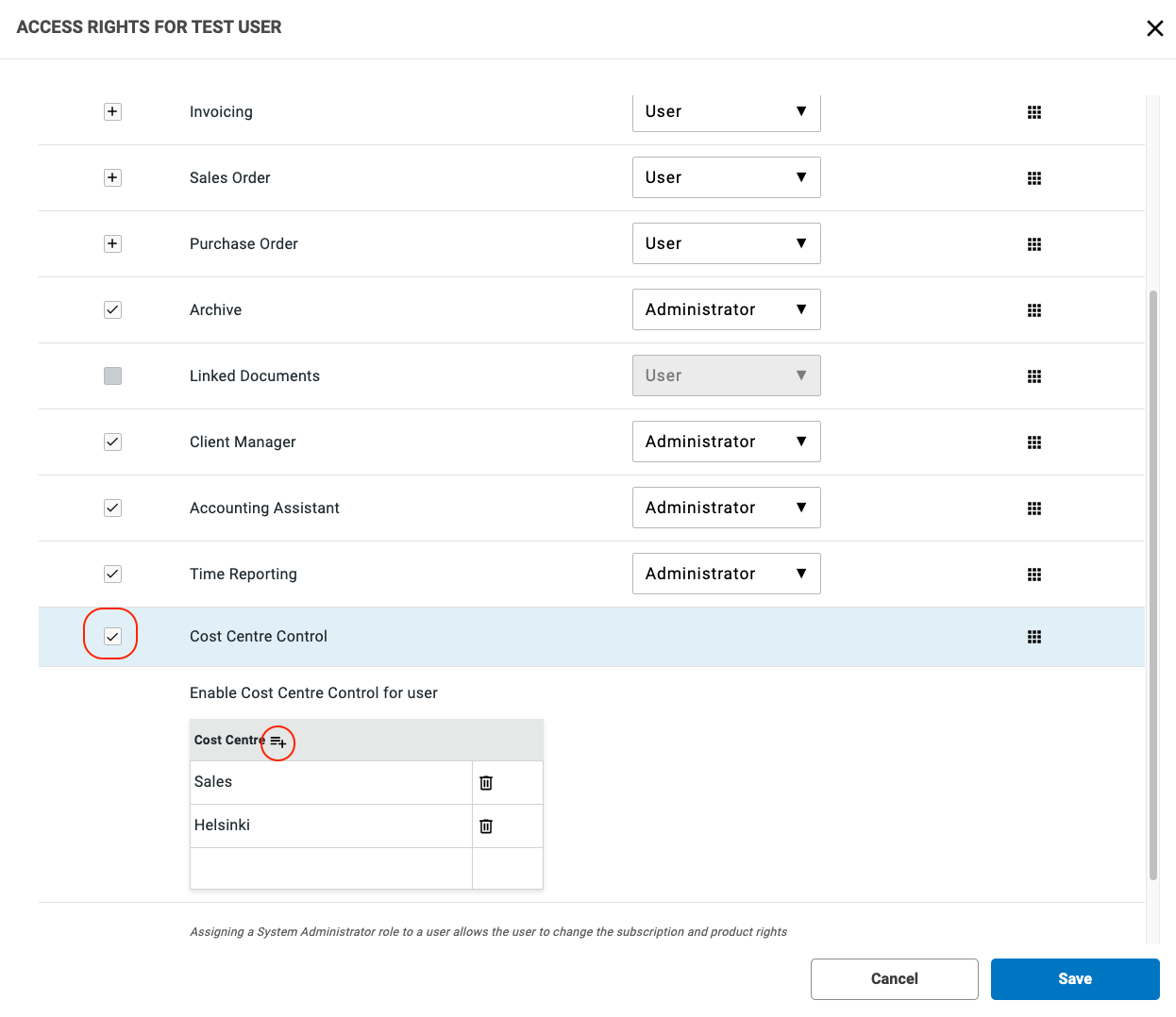
Have more questions? Submit a request