Under Settings - Accounting / Purchase Order / Invoicing / Sales Order, you can change the current numbering of supplier invoices and other documents.
Note: Every document recorded in the software will have a unique number.
- Click on Settings -Accounting / Purchase Order / Invoicing / Sales Order. Select Number series in the list.
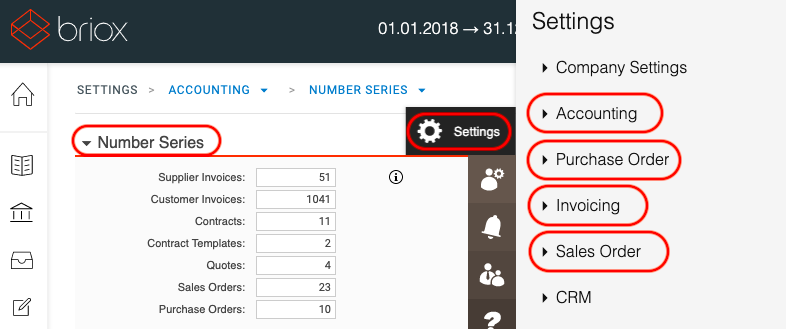
- Enter the number that you want your supplier invoice, customer invoice, quote, order etc. to start with. When you create a new document, the application will follow the number series starting from the number you enter here. Please note that only digits can be entered here and you cannot enter a number lower than the one currently in use.
- Click on Save when done.
Caution: If you change the number series when you are creating a new financial year the numbering will also change in the previous year. (i.e.: only one number series can exist at a time). Remember that you should have completed your invoicing in the previous year prior to beginning in the new.
Note: If you cannot see Contracts and Contract Templates, it is because Recurring Invoicing has not been activated under Settings - Invoicing - Recurring Invoicing.
Have more questions? Submit a request